Yes! Homecare Pro lets you automatically drop the right information into a document before anyone even starts signing to help streamline the caregiver onboarding experience.
Watch Demo Video Here
Here’s the quick, plain-English guide:
If you want to pre-fill full names dynamically:
Our e-signature platform allows you to prefill Caregiver full names and Manager full names easily. We recommend using their “Auto-Fill” option for full names only.
- Open your template and tap on Auto-Fill tab in the top left corner
- Select Name from the sidebar on the left and drop it in where relevant
- Ensure the correct recipient is attached to that field (i.e. if it should be caregiver name it is assigned to caregiver).
If you want to pre-fill text fields dynamically:
We recommend using our pre-fill codes below to fill other types of text fields. Only Text fields can be pre-filled.
Open your template and choose the Text field you want to pre-fill.
Click Advanced Settings (you’ll see a small dropdown).
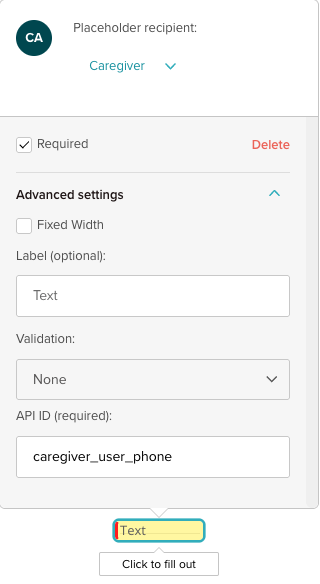
At the bottom you’ll spot a box called API ID.
Paste the corresponding “pre-fill codes” from the list below.
Close Advanced Settings and (when you’re done editing) save the template.
From now on, every document created from this template will arrive with those fields already filled in—no extra typing needed.
Pre-fill codes you can use
| Code to enter in API ID | What shows up in the field |
|---|---|
| autofill_email_clean | Caregiver’s email address |
| autofill_mobile_phone_clean | Caregiver’s phone number |
| autofill_first_name | Caregiver’s first name |
| autofill_last_name | Caregiver’s last name |
| autofill_dob_pretty | Caregiver’s full date of birth (e.g., “Jan 5, 1990”) |
| autofill_ssn_clean | Caregiver’s Social Security Number |
| autofill_address_line_1 | Caregiver’s street address (line 1) |
| autofill_address_line_2 | Caregiver’s street address (line 2, if any) |
| autofill_address_city | Caregiver’s address city |
| autofill_address_state | Caregiver’s address state |
| autofill_zip_code | Caregiver’s address ZIP code |
| autofill_address_pretty | Caregiver’s complete address, neatly formatted |
| autofill_dl_number | Caregiver’s driver’s-license number |
| autofill_dl_state | State that issued the caregiver’s driver’s license |
| autofill_agency_name | The name of your agency |
For example, if we want a driving license number field that we autofill at point of generation we would:
- create a standard TextField for the Caregiver placeholder
- set it’s api_id to
autofill_dl_number - if we wanted a second one on the same template we would set it’s api_id to
autofill_dl_number_1
Was this article helpful?
That’s Great!
Thank you for your feedback
Sorry! We couldn't be helpful
Thank you for your feedback
Feedback sent
We appreciate your effort and will try to fix the article